For a couple of months now I've had a widget at the bottom of this blog's sidebar that displays the current electricity usage and temperature in my house. If you've been wondering how that works, the secret lies in the free energy monitor that E.On is offering its customers as part of its Energy Fit campaign. I got one of these late last year, but it was faulty and had to be replaced early in the new year.
The meter that E.On supplies is actually a CurrentCost EnviR model worth about £50, and it handily comes with a USB PC connector to interface with E.On's monitoring software. This is awful, but to create the widget you don't need it - all you need is to create a free account at Pachube. This a very interesting web service that lets you create XML feeds to share data from almost any environmental sensor. There's also a collection of widgets and apps built by users for displaying this data in web pages. First you have to create a feed by getting a master API key - Pachube walks you through this procedure, which is fairly simple. All Pachube's free feeds are public - for example, mine is http://api.pachube.com/v2/feeds/12547.xml (this shows the current values and feed coordinates).
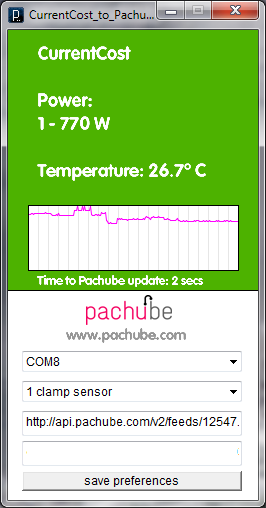
To get the data from the meter to Pachube, I use the free CurrentCost to Pachube app. This queries the meter every minute over the USB interface, then uploads the data to the Pachube feed. Then to display the data on my blog, I use the PachuDial widget. This takes the feed details you supply and then generates the necessary HTML code to put in one of Blogger's sidebar gadgets. The graphs below are also using live data from the Pachube feed.
It's just a bit of fun, but a fascinating little example of the 'internet of things'.
Monday, 28 February 2011
Saturday, 12 February 2011
Review: Bullguard Internet Security 10
I seem to have been doing a lot of security suite reviews recently. The latest one is Bullguard Internet Security 10, which has just been published by Computeractive where it has been given five stars and a 'Buy It!' award. It's a great product a good price
although the interface is a bit quirky.
Friday, 11 February 2011
How to remove network names in Windows 7
Networking in Windows 7 is generally pretty simple, apart from the unecessarily complicated Network and Sharing Center. But one annoyance when you connect to a lot of different networks, as I do, is that it refuses to forget the name of a network. So you can end up with multiple network names, such as Network 4, Network 7 and so on. This isn't really a big problem, but if you need to start with a clean sheet (I need to do this sometimes for screenshots), it's not obvious how to delete the list of known network names. But in fact it is very simple.
First, open the Network and Sharing Center by clicking on the network icon in the notification area. Next to the current network name is a large icon, in this case a house representing a Home network (Note that it is the larger icon in the 'View your active networks' section I am referring to - thanks to the commenter who pointed this out).
But we want to delete other network names, so click on the link at the bottom labelled Merge or Delete Network Locations.
Now you'll see a complete list of all the network locations your PC has connected to. Select those you want to get rid of - you can't delete them all at once, as selecting multiple names activates the Merge option. This lets you combine all the networks into a single name - I'm not too sure what use this is. Note that you can't delete any networks that are currently in use.
Update: As one kind commenter has pointed out below, you can delete multiple names by selecting them with Shift-click or Ctrl-click, then pressing Delete. Just make sure that none of the networks selected has an 'In Use' status, which is what I did - if you do this, the Delete button will be greyed out.
First, open the Network and Sharing Center by clicking on the network icon in the notification area. Next to the current network name is a large icon, in this case a house representing a Home network (Note that it is the larger icon in the 'View your active networks' section I am referring to - thanks to the commenter who pointed this out).
Click on the house icon and a Set Network Properties dialog box will appear that allows you to rename the current network and optionally change the icon.
But we want to delete other network names, so click on the link at the bottom labelled Merge or Delete Network Locations.
Now you'll see a complete list of all the network locations your PC has connected to. Select those you want to get rid of - you can't delete them all at once, as selecting multiple names activates the Merge option. This lets you combine all the networks into a single name - I'm not too sure what use this is. Note that you can't delete any networks that are currently in use.
Update: As one kind commenter has pointed out below, you can delete multiple names by selecting them with Shift-click or Ctrl-click, then pressing Delete. Just make sure that none of the networks selected has an 'In Use' status, which is what I did - if you do this, the Delete button will be greyed out.
Review: AVG Internet Security 2011
I reviewed the business version of AVG's latest security suite a few months ago, ands now it's the turn of the paid-for consumer product. My review has just been published by Computeractive.
Monday, 7 February 2011
AVM Fritz!Fon MT-F
More news from AVM, with the launch of the international version of the Fritz!Fon MT-F DECT phone. This is designed as a companion phone for Fritz!Box 7270 or 7390 VoIP routers, although it can be used with any GAP-compatible base station. Read more about it in my post on ZDNet UK's First Take blog.
Thursday, 3 February 2011
AirMagnet Enterprise 9.0 unveiled
Fluke Networks has just announced AirMagnet Enterprise 9.0, a major new version that adds dynamic threat updates. Read more about it in my piece on ZDNet UK's First Take blog.
Tuesday, 1 February 2011
Fujitsu launches ScanSnap S1100 colour scanner
Fujitsu has added another member to its ScanSnap family of desktop colour scanners, the ultraportable S1100. This tiny USB-powered unit can scan an A4 document at 600dpi in about 30 seconds. Head over to ZDNet UK for my full summary article.
Subscribe to:
Posts (Atom)


